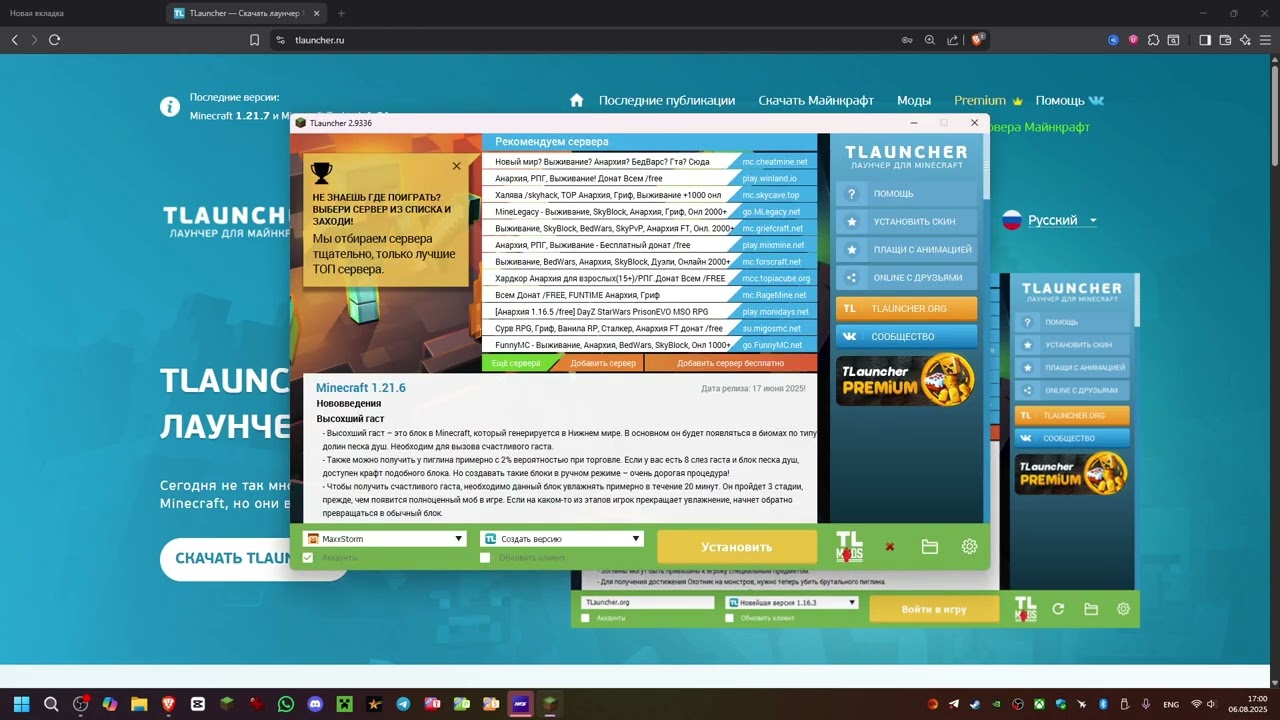
The question “how to download Minecraft on a computer” almost always turns into another one — “how to do it without catching a virus on the desktop”. We calmly break it down step by step, aimed at Windows and a child’s account, where it’s especially important not to press the wrong button.
Two paths: official launch and a third-party launcher
The first path — official: buying the game and launching through the branded launcher. It automatically installs the right Java, keeps the profile, worlds and packs without manual setup, and that’s the most predictable option for a beginner. The second path — third-party (unofficial) launchers: they’re loved for convenient access to many versions, to old packs like 1.20.1, to modpacks and to offline mode. It’s important to understand the difference: their functionality is often wider, but they don’t remove the legal responsibility for the license. For the family and “white” scenario it’s more honest to settle on the licensed copy, keeping third-party tools in mind as a technical option, not “free instead of buying”.
The main trap — the advertising “Download” button
The classic trouble: you type the launcher’s name into search and land on a twin site with a huge green button. Most often it’s not the game’s download file but an installer of third-party junk. The rule is simple: don’t download from ads and short links, verify the page address and don’t install the first .exe you see. If the launcher requires disabling the antivirus or “definitely run as administrator” at the installation stage — that’s a reason to be wary, not to follow the instruction.
Why the game asks for Java
The classic Java edition of Minecraft runs on top of Java, so at first launch the system installs the runtime. If Java isn’t installed or the version is wrong, the game either won’t start or will crash at world loading. Modern versions require fresh Java, and here it’s more useful to let the launcher pull the needed runtime itself than to download “a collection from every site in a row”. For Windows it’s usually a couple of minutes and one profile restart.
What to check right after installation
Then boring but useful hygiene works: scan the downloaded file with an antivirus once before launch; make sure the launcher didn’t drag in panels and task scheduler; create a separate user profile for the game if the computer is shared. For a child, separately set limits and enable safe online parameters — it’s done in the account, not in the launcher itself. About the mods and packs that usually come next, read our mods section: the principle is the same there — the file is taken from a verified source, not the first button you see.
Versions, snapshots and test builds
A separate theme — the temptation to install the very freshest version. Launchers give access to releases, to snapshots (test builds) and to quite old versions with albums up to the earliest ones. Practical advice: play on the stable release, keep snapshots in a separate profile and on a copy of the world — test versions can corrupt saves, and you can’t roll them back to an older version. The same principle works for the server: the core and the client version must match, or the connection won’t happen.
Short version of the main thing: safe installation of Minecraft on Windows isn’t searching “download free without sms” but discipline: an official source or a vetted launcher, trust in Java, scanning the file and a separate profile for experiments. Then the eternal guides like “how to install a mod” will stop being a virus lottery.
Before launch: check the download address, download the file only from the main page, not from ads; scan the download with an antivirus once; uncheck the “install extra panel” boxes in the setup wizard, if they appeared.
After installation: check the Java version, create a separate profile for snapshots, keep a backup of the main world. For a child’s account — limits and safe online mode in the account settings.
Separately about the license: third-party launchers widen access to versions and offline, but don’t replace buying the game. For school, family and a public server choose the legal launch.